

Setup guide
Configure Lumen after installation — widget settings, escalation email, and plan selection.
After installing Lumen, configure the settings that affect what customers see and how your team receives escalations.
Accessing the Lumen dashboard
- In your Shopify admin, go to Apps → Lumen.
- Use the left navigation to open Settings, Tickets, Analytics, or Pricing.
Basic configuration
Bot name and tone
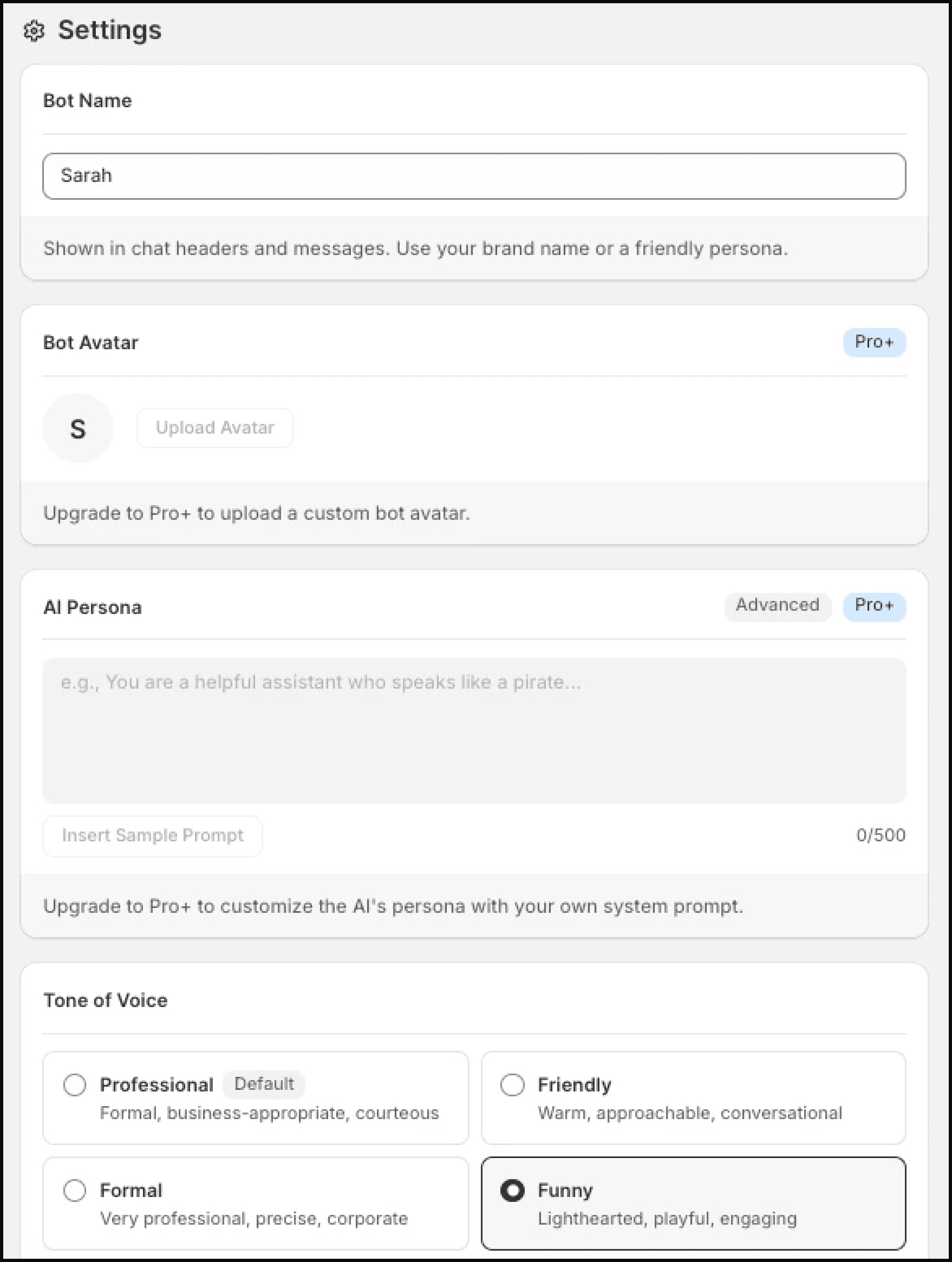
In the Settings tab, you can set:
- Bot name — The name displayed in the chat header, such as your store name or "Support".
- Tone — The response style Lumen uses when answering customers.
Escalation email
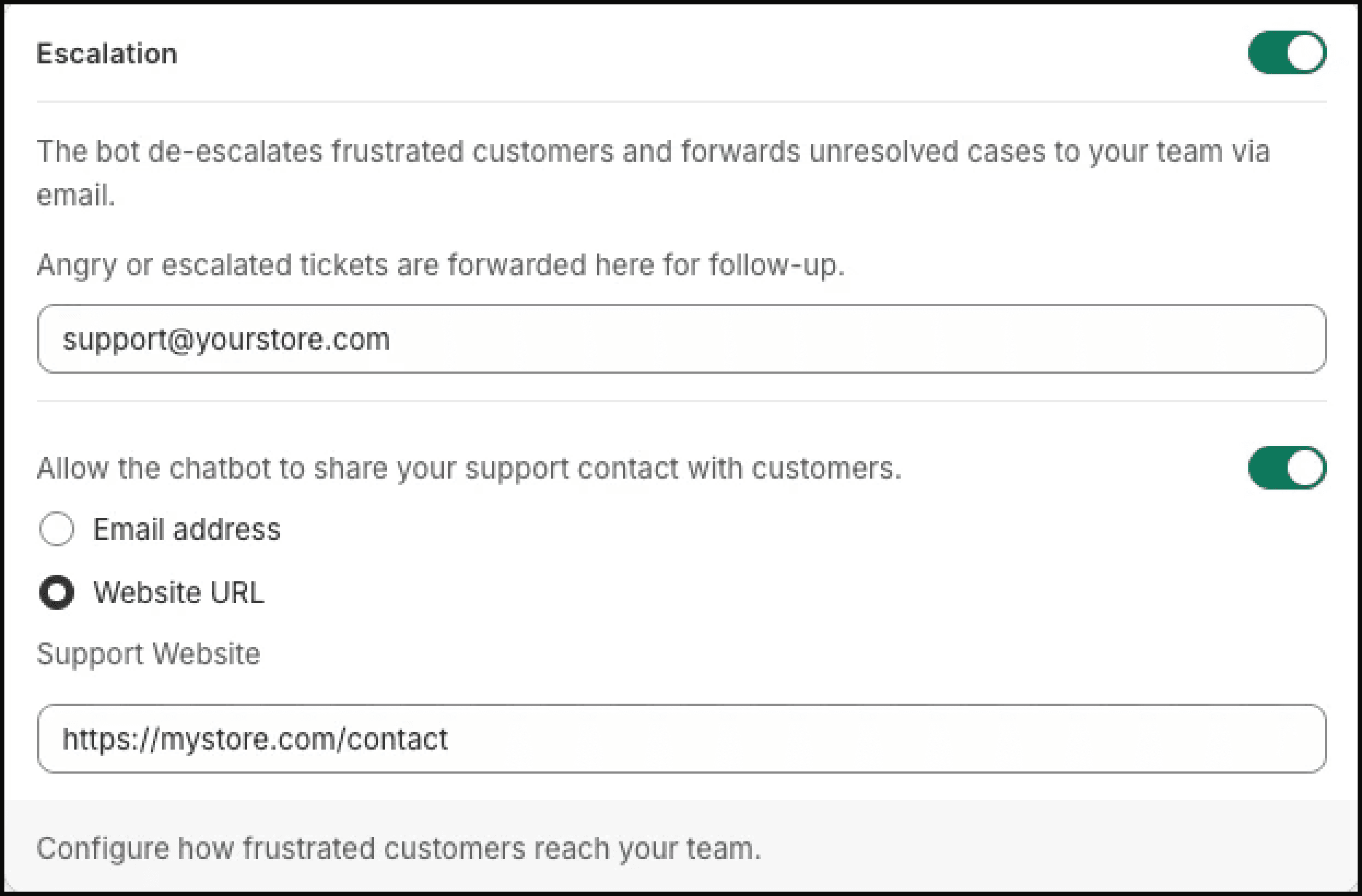
Set the email address where Lumen should send escalated conversations:
- Go to Settings → Escalation.
- Enter your support team's email address.
- Click Save.
When Lumen detects a frustrated customer or can't resolve a query, it sends the full conversation context to this email so your team can follow up.
Email escalation alerts are available on Pro and Pro+ plans. Free stores can still create escalation tickets, but merchant escalation emails are not sent.
Plan selection
Lumen starts on the Free plan. To upgrade:
- Go to Pricing.
- Choose Pro ($29/month) or Pro+ ($69/month).
- Confirm through Shopify's billing system.
All paid plans include a 7-day free trial. See Plans & Pricing for a detailed comparison.
Theme editor settings
Some widget settings are configured directly in the Shopify Theme Editor:
- Go to Online Store → Themes → Customize.
- Click the App embeds tab.
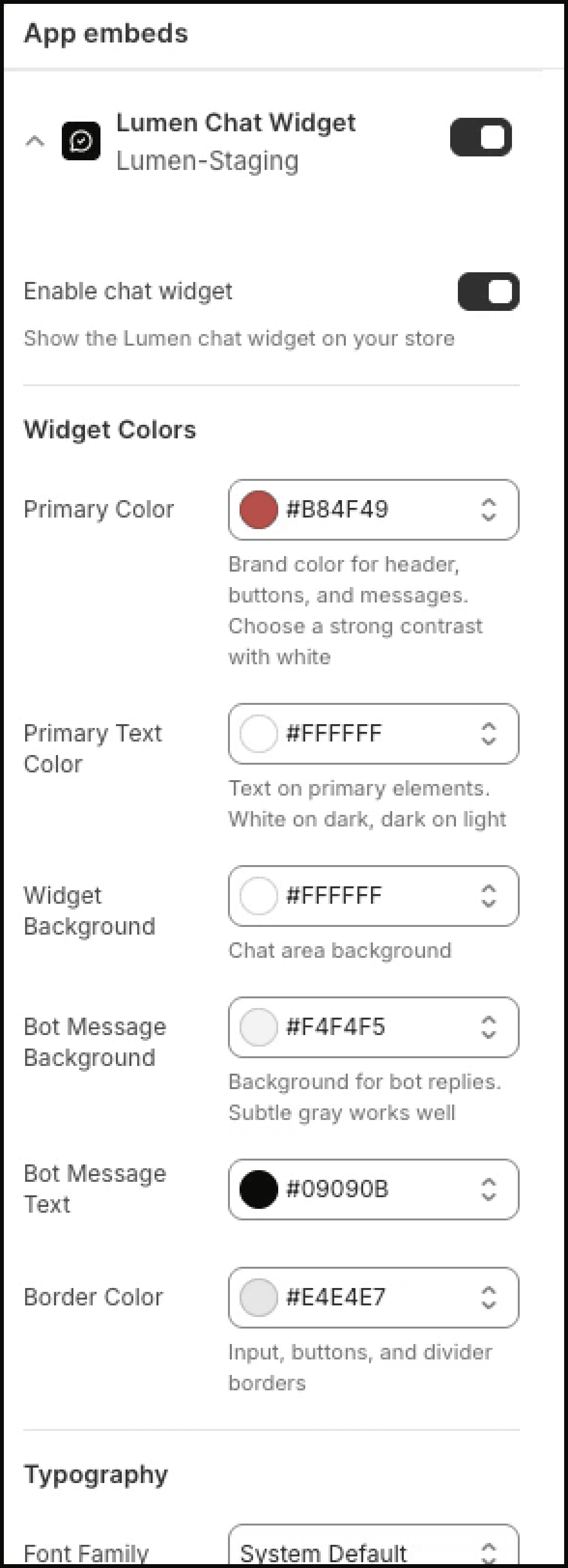
- Click on the Lumen Chat Widget to expand its settings.
From here you can adjust:
- Widget position
- Widget colors
- Widget visibility
See Widget Customization for detailed instructions.
Verify everything works
To confirm Lumen is working correctly:
- Visit your live storefront.
- You should see the Lumen chat bubble in the bottom corner.
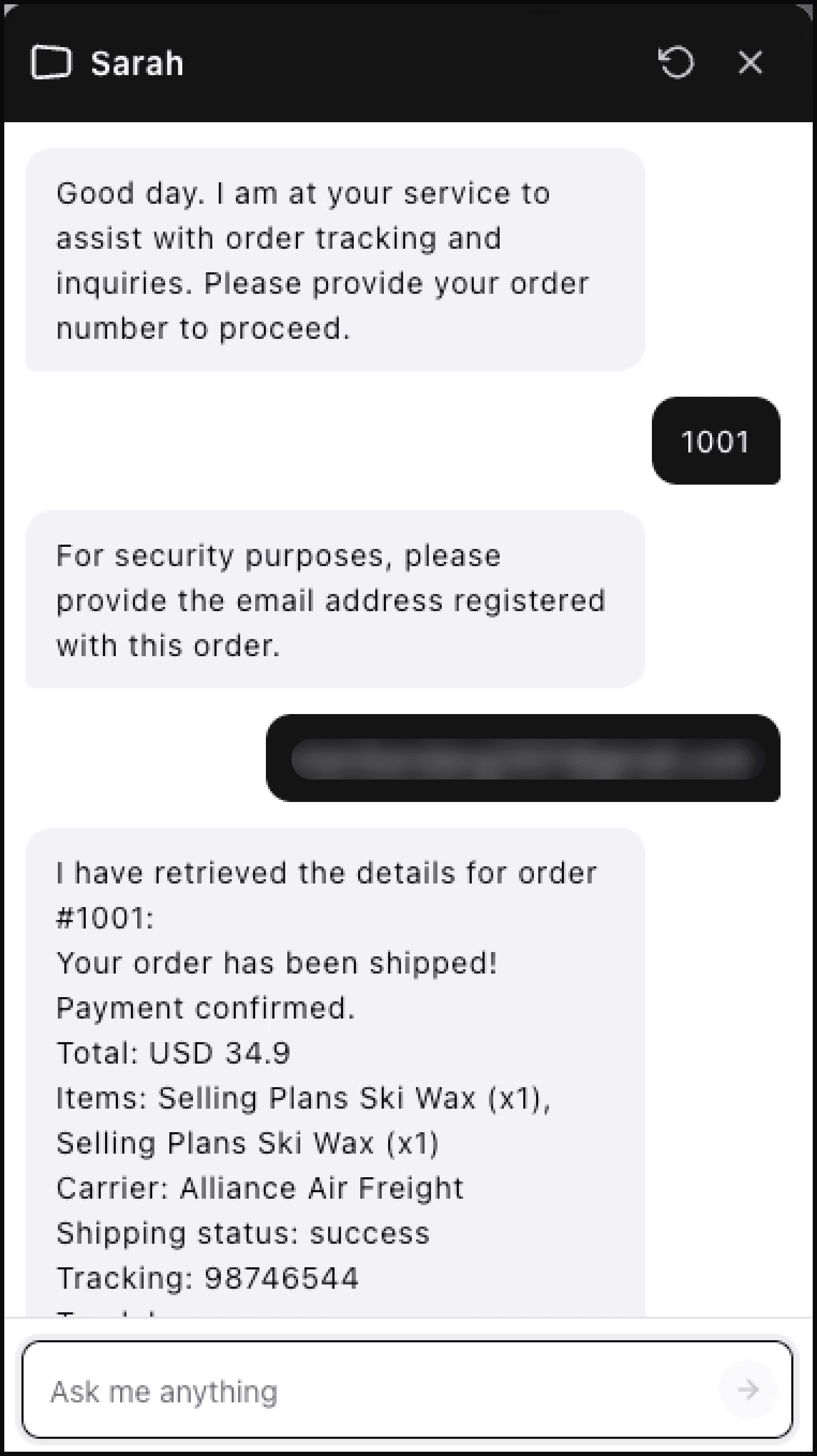
- Open the widget and type something like "Where is my order?"
- Lumen should ask for an order number.
- After you provide the order number, Lumen should ask for the customer email before showing details.
- After the correct email is provided, Lumen should show the order status or tracking details.
If the widget doesn't appear or orders aren't found, check the Troubleshooting section.