

Installation
Install Lumen on your Shopify store from the Shopify App Store.
Installing Lumen takes a few minutes. No code changes are required, but the storefront widget must be enabled in your Shopify theme before customers can see it.
Prerequisites
Before installing, make sure you have:
- An active Shopify store (any plan — Basic, Shopify, Advanced, or Plus)
- Store admin or staff access with Apps permission
- An Online Store sales channel enabled (this is where the chat widget appears)
Step 1: Install from the Shopify App Store
- Visit the Lumen listing on the Shopify App Store.
- Click Add app.
- You'll be redirected to your Shopify admin to review the permissions Lumen needs.
- Click Install app to confirm.
Step 2: Approve permissions
Lumen requests the minimum permissions needed to function:
| Permission | Why it's needed |
|---|---|
| Read orders | To look up order status when customers ask |
| Read fulfillments | To get tracking and shipping information |
Lumen uses read access for order and fulfillment data. It cannot modify orders, customers, products, payments, or inventory.
Step 3: Enable the chat widget
After installation, you need to enable the Lumen chat widget in your theme:
- In your Shopify admin, go to Online Store → Themes.
- Click Customize on your active theme.
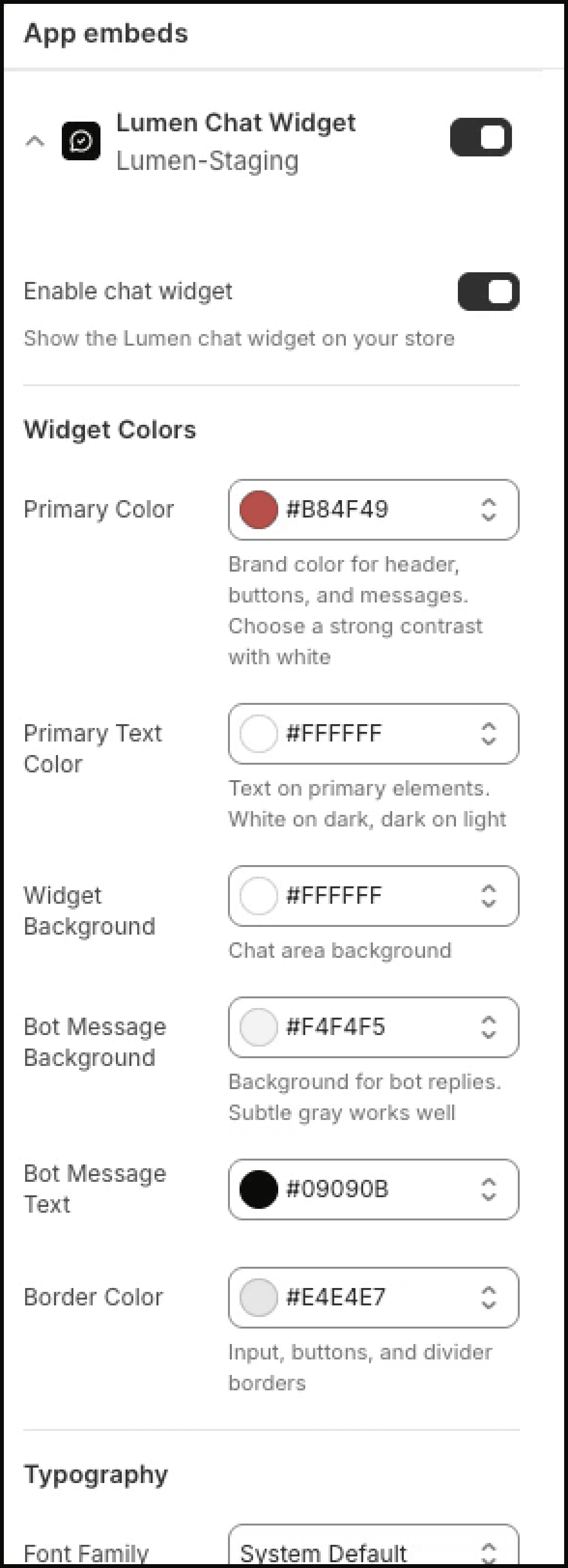
- Click App embeds in the left sidebar (the puzzle-piece icon).
- Find Lumen Chat Widget and toggle it on.
- Click Save.
The chat widget will now appear on your storefront.
What happens next
Once installed and enabled, customers can ask order tracking questions from your storefront. The Free plan includes 50 conversations per month.
To configure the widget appearance, set up escalation emails, or upgrade your plan, continue to the Setup Guide.
Basic order tracking works after installation and app embed activation. For the best experience, also set your bot name, tone, and escalation email.