

Appearance
Customize the look and position of Lumen's chat widget on your storefront.
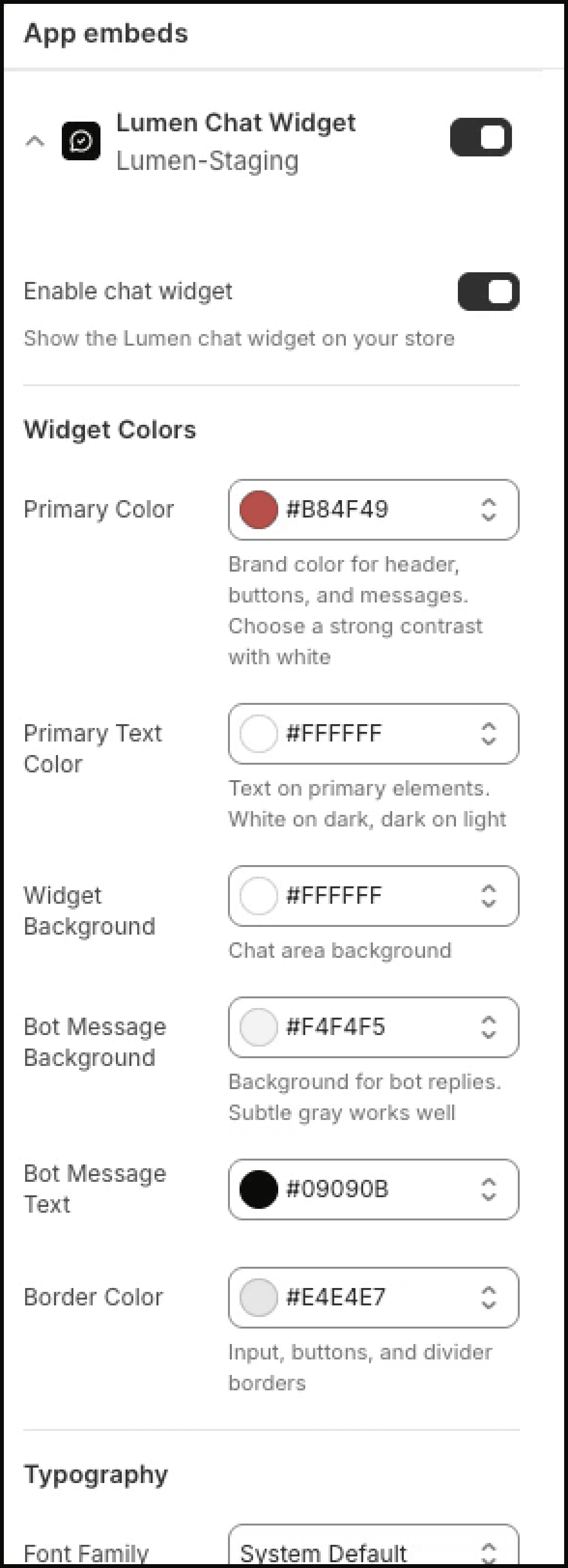
Lumen's storefront appearance is configured through Shopify's Theme Editor. Settings saved there apply to the storefront widget without code changes.
Accessing widget settings
- In your Shopify admin, go to Online Store → Themes.
- Click Customize on your active theme.
- Click the App embeds tab (puzzle-piece icon in the left sidebar).
- Click Lumen Chat Widget to expand its settings.
Widget position
Choose where the chat bubble appears on your storefront:
- Bottom right (default) — The standard position for chat widgets. Most customers expect it here.
- Bottom left — Use this if you have another widget or element in the bottom-right corner.
- Top right / top left — Use only when bottom corners are occupied by sticky store UI.
On paid plans, you can also control the offset so the widget does not overlap loyalty buttons, cookie banners, or other floating elements.
Widget colors
You can customize the widget's primary color to match your store's branding. This color is applied to:
- The chat bubble button
- Send button and interactive elements
- Key active states inside the widget
Enter a hex color code (e.g., #D97706) or use the color picker.
Page visibility
By default, the widget can appear across your storefront after the app embed is enabled. Paid plans include page visibility controls so you can choose where the widget should appear.
Use this when you want Lumen on product, collection, or order-related pages but not on every storefront page.
Mobile behavior
The widget automatically adapts to mobile screens:
- On mobile, the chat opens as a near-full-screen overlay
- The chat bubble scales down slightly to avoid blocking content
- Touch-friendly input and scrolling
No additional configuration is needed for mobile responsiveness.
Preview changes
All changes in the Theme Editor are previewed in real time. Click Save only when you're satisfied with the appearance.
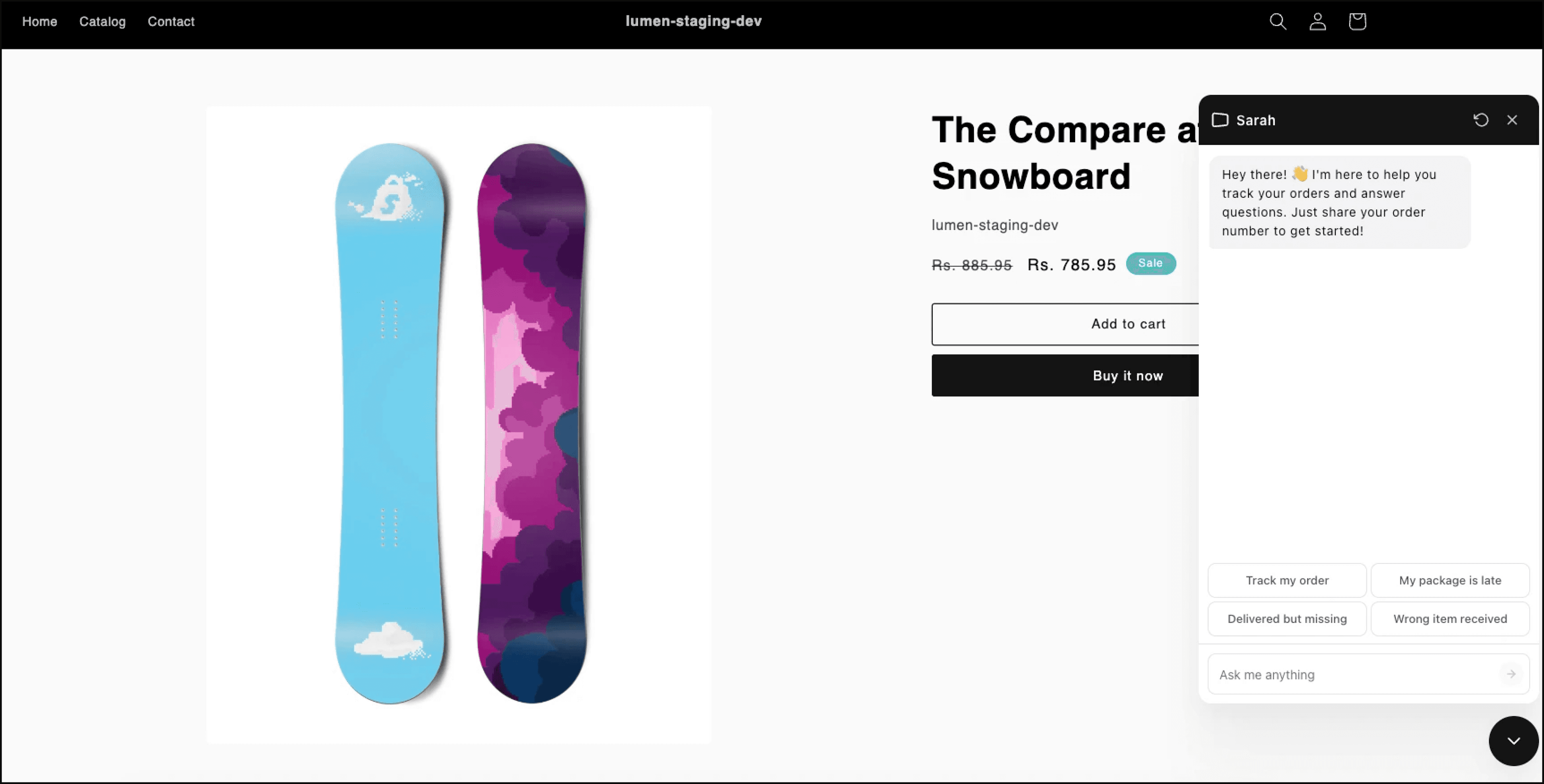
Widget appearance changes apply immediately after saving. No need to republish your theme.