

Escalation issues
Fix problems with email escalations not sending or arriving.
Escalation emails not arriving
Symptom: A customer conversation was escalated but you didn't receive the email.
Solutions:
-
Check your spam/junk folder — Escalation emails are sent from Lumen's system and may be caught by spam filters on first delivery.
-
Verify the escalation email address — Go to Apps → Lumen → Settings → Escalation and confirm the email address is correct. A typo in the address means emails go nowhere.
-
Check your plan — Email escalation is only available on Pro and Pro+ plans. If you're on the Free plan, escalation won't work.
-
Whitelist the sender — Add Lumen's sending domain to your email provider's allowlist to prevent future deliverability issues.
-
Check Tickets — If the ticket exists but the email did not arrive, the issue is likely email delivery rather than escalation detection.
Escalation email missing information
Symptom: You received the escalation email but it's missing order details or conversation history.
Possible causes:
- The customer didn't provide an order number during the conversation
- The order check failed, so no order data was available to include
- The conversation was very short (customer immediately requested escalation)
Lumen includes all available information at the time of escalation. If order data wasn't successfully retrieved during the conversation, it won't appear in the email.
Customer says they were told they'd get help but didn't
Symptom: A customer contacts you saying Lumen told them someone would follow up, but your team didn't receive anything.
Steps to diagnose:
- Check the escalation email address is correct in Settings.
- Check your spam folder.
- Look in Apps → Lumen → Tickets for the specific conversation to see if the escalation was triggered.
- Confirm your store is on Pro or Pro+ if you expected an email alert.
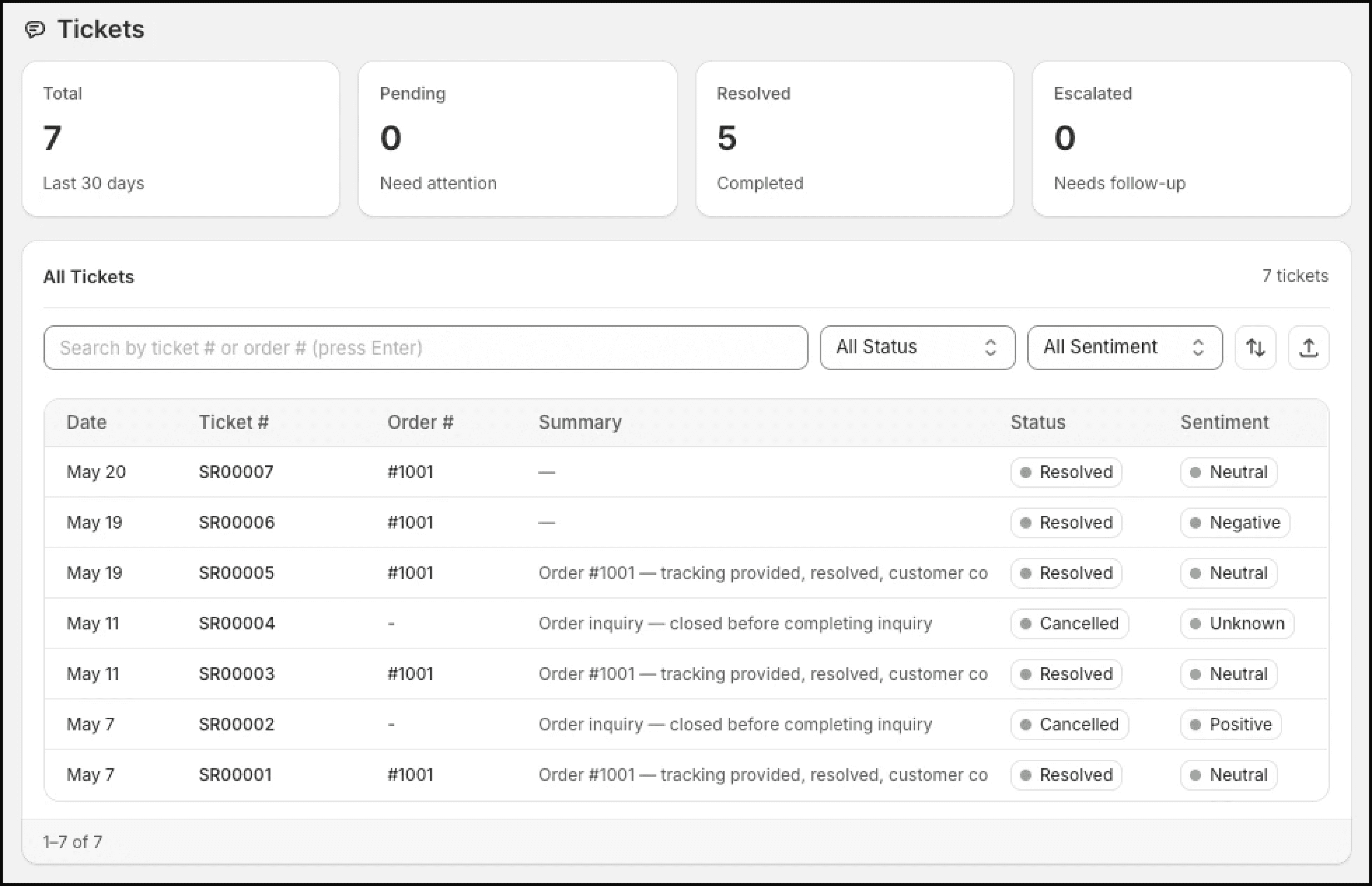
If the conversation shows as escalated in Tickets but you didn't get the email, the issue is likely email deliverability. Contact support@manilabs.co for help.
Escalation emails going to wrong address
Solution: Update the escalation email in Apps → Lumen → Settings → Escalation. The change takes effect immediately for all future escalations. Previously sent emails cannot be redirected.
If escalation emails are consistently not arriving, contact us at support@manilabs.co. Include your store URL, escalation email address, and the approximate time of the test.