

Email setup
Configure where Lumen sends escalated conversations.
Set up the email address that receives escalated customer conversations.
Email escalation alerts are available on Pro and Pro+ plans. Free stores can still see escalation tickets in Lumen, but merchant escalation emails are not sent.
Configure escalation email
- Go to Apps → Lumen → Settings.
- Find the Escalation section.
- Enter your support team's email address.
- Click Save.
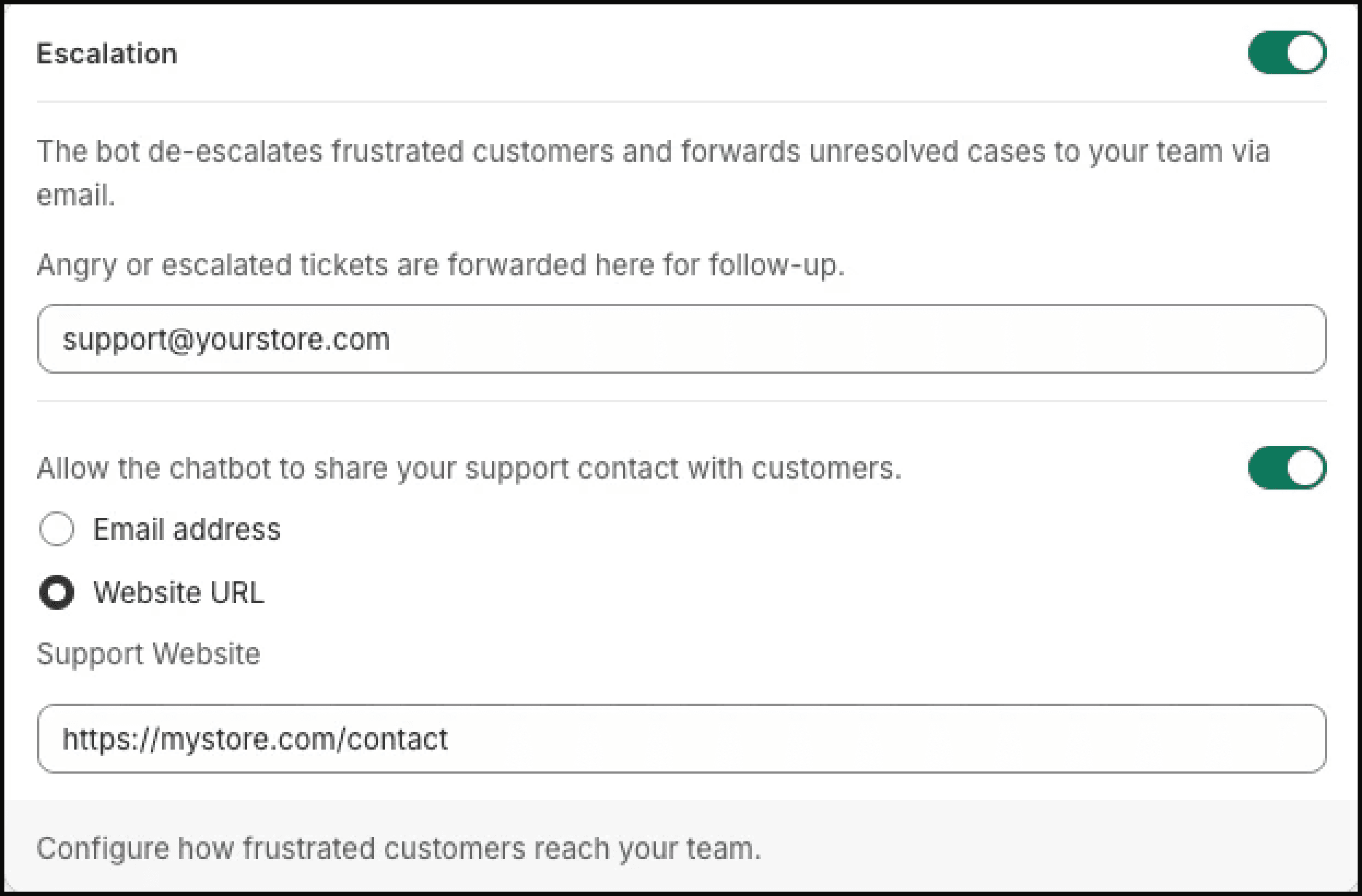
You can use any email address — a shared inbox (e.g., support@yourstore.com), a helpdesk email (e.g., your Zendesk or Freshdesk forwarding address), or a personal email.
Using a shared inbox
For teams, we recommend using a shared inbox or helpdesk integration:
- Shared inbox (Google Groups, Outlook shared mailbox) — Multiple team members can see and respond to escalations.
- Helpdesk (Zendesk, Freshdesk, Help Scout) — Escalations automatically become support tickets in your existing system.
Set the escalation email to your helpdesk's inbound email address, and escalations will appear as new tickets.
Email format
Escalation emails are sent from Lumen's system and include:
- Subject line: "Lumen Escalation — Order #[number] — [Customer Email]"
- Body: Full conversation transcript, order details, and escalation reason
- Reply-to: Set to the customer's email address, so hitting "Reply" goes directly to the customer
Testing escalation
To verify your email setup is working:
- Visit your storefront and open the Lumen chat widget.
- Type something like "I want to talk to a real person" or "I need a refund."
- Lumen will offer to escalate — follow the prompts.
- Check the escalation email inbox for the test email.
Make sure the escalation email address is monitored. If customers are told their issue has been forwarded but never hear back, it damages trust in your store.
Changing the escalation email
You can update the escalation email at any time in Apps → Lumen → Settings. The change takes effect immediately for all future escalations.