

Analytics dashboard
Overview of Lumen's analytics dashboard and how to use it.
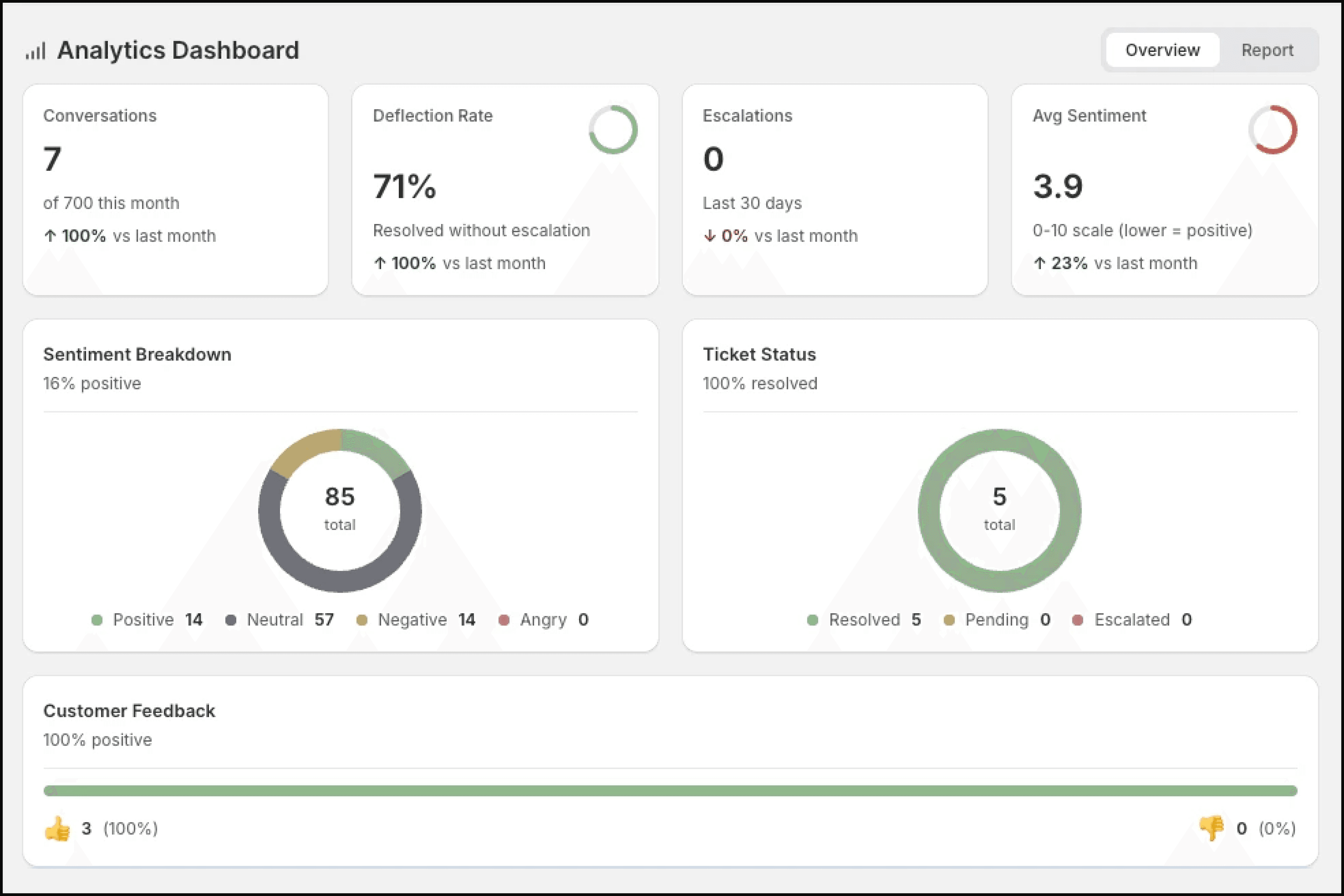
The analytics dashboard gives you visibility into how Lumen is performing for your store. Available on Pro and Pro+ plans.
Accessing the dashboard
- Go to Apps → Lumen in your Shopify admin.
- Click the Analytics tab.
Dashboard overview
The dashboard shows key metrics for a selected time period (7 days, 30 days, or custom range):
Total conversations
The number of chat sessions where customers interacted with Lumen. Each session — from when a customer opens the widget to when they close it — counts as one conversation.
Deflection rate
The percentage of conversations that Lumen resolved without escalation. A higher deflection rate means Lumen is handling more issues on its own.
For example, if Lumen handled 100 conversations and only 15 were escalated, your deflection rate is 85%.
Escalation count
The number of conversations that were escalated to your support team. This is a monitoring metric, not an escalation email quota.
Recent activity
Recent tickets show the conversations that may need review. Use this to spot patterns such as repeated tracking delays, damaged-item reports, or policy questions.
Time period selection
Use the date picker at the top of the dashboard to view metrics for:
- Last 7 days — Quick snapshot of recent performance
- Last 30 days — Monthly overview
- Custom range — Select specific start and end dates
Pro+ analytics
On the Pro+ plan, you get additional analytics:
- Sentiment trend chart — Visualize customer sentiment over time
- Peak hours — See when customers are most active
- Common queries — Understand what customers ask most frequently